
Framer Review: Features, Pros and Cons, and Who It's For
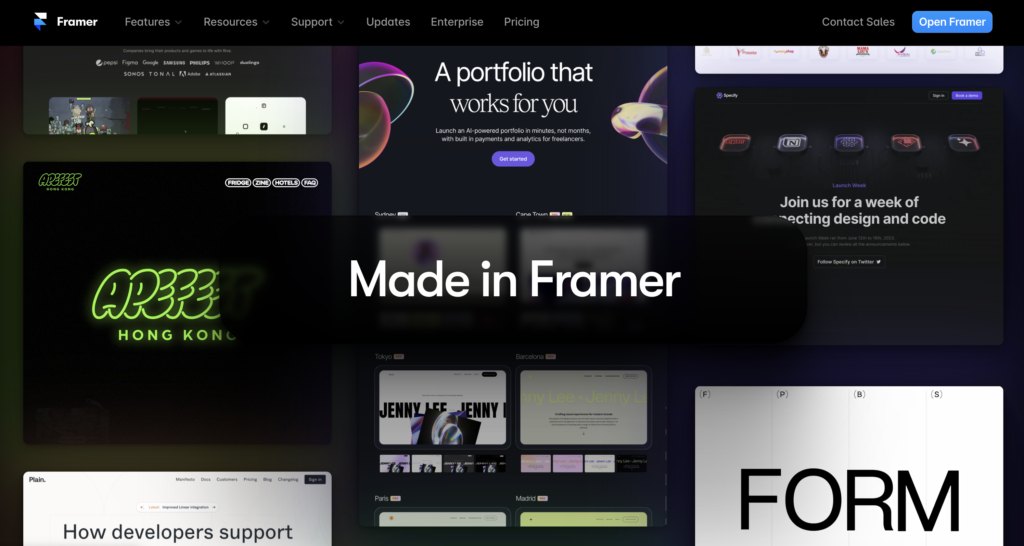
If you want to build your own website without starting with code, Framer is worth a look. You can arrange content on a canvas, add interactions, and publish from the same tool. If you've used design software before, parts of that workflow will feel familiar.
The question is whether it fits the site you want to maintain. A portfolio, a blog, and a business website can have quite different requirements. Here's a closer look at Framer's features, its limitations, and what to consider before choosing a plan.
What Can You Build with Framer?
Framer brings page design and publishing into one workspace. You can start with a blank canvas or adapt a template by replacing its text, images, and layout.
For a first project, keep the scope small: a page introducing your work, your services, and how to contact you. That gives you something useful to build while you learn how the editor works.
Visual editing still takes practice. You need to think about spacing, text hierarchy, and how the page behaves on different screen sizes. AI can help with a starting point, but the result still needs your content and design decisions.
You can create a free Framer account to explore the editor before committing to a paid plan.
Five Features to Know
CMS for Articles and Projects
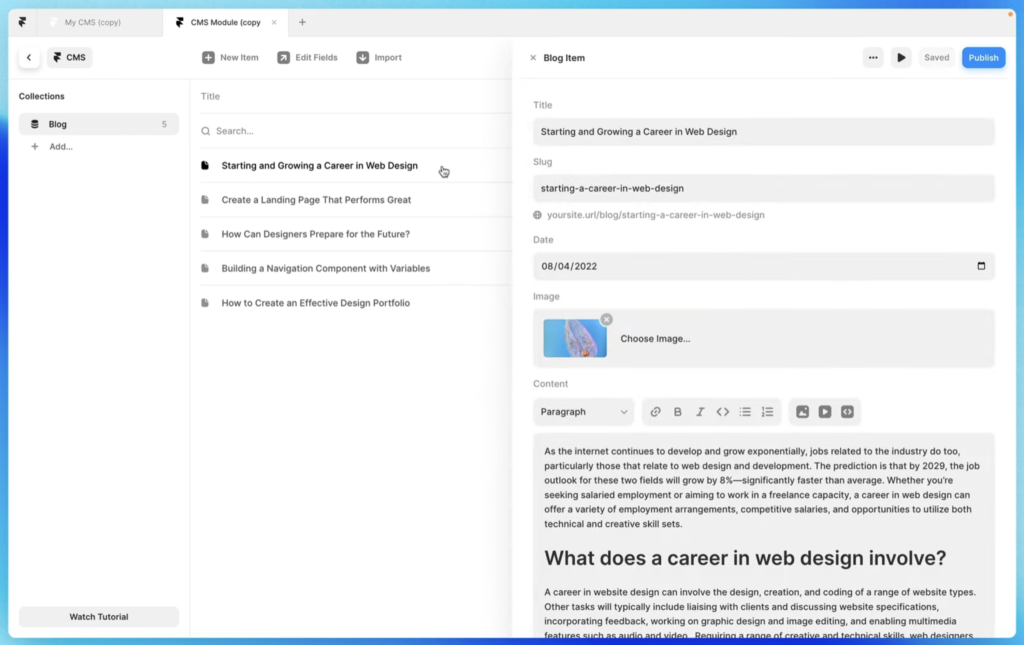
A content management system, or CMS, is useful when you have a set of pages that share a layout. You define fields for the content, connect them to a page design, and reuse that structure for new entries.
For example, each portfolio project might have a title, a cover image, a short introduction, and a project body. A shared layout gives those pages a consistent structure while leaving room for different content.
Before moving a larger site, map out the content you need to manage. Check that the available fields, relationships, and plan limits suit your publishing workflow.
SEO Settings
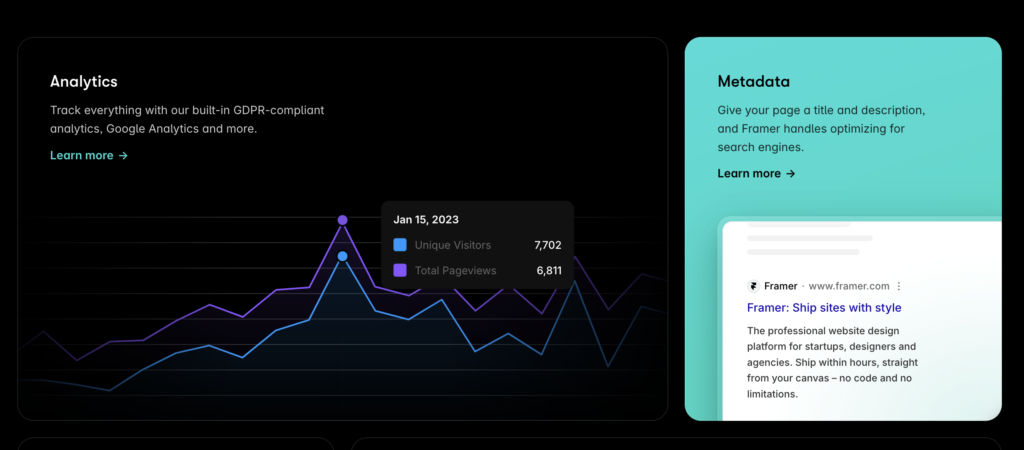
Framer includes controls for page titles, descriptions, and URLs, along with technical features such as sitemaps. Its SEO overview explains what's included.
Those settings give you a foundation to work with. They don't guarantee a search ranking. Write a specific title for each page, make the content useful to the people searching for it, and give readers a clear way to explore related pages.
Effects and Animation
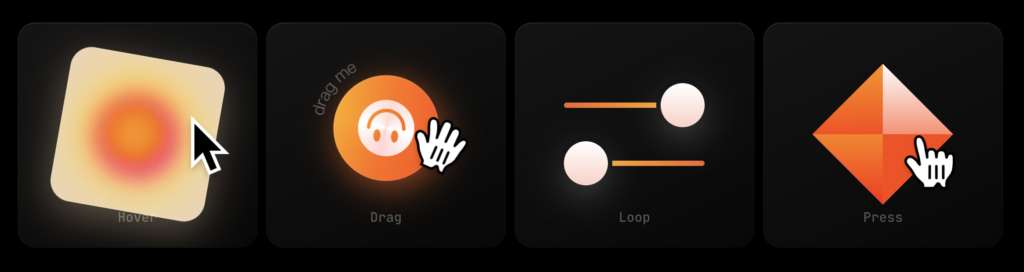
Motion can help explain a design or draw attention to a detail. On a portfolio, that might mean showing how an interface responds to an action or introducing a project as the reader scrolls.
Start with a readable page, then decide where movement adds something. If an effect makes the text harder to follow or delays access to the work, simplify it. Check the result on a phone as well as a desktop screen.
Collaboration
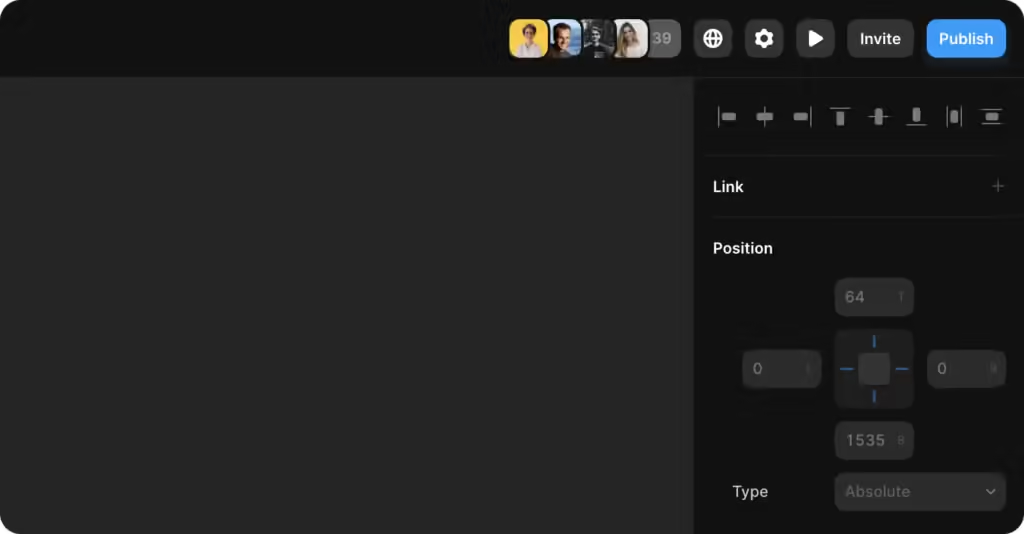
This is one of my favorite features. Framer lets people work on a shared project, which makes it easier to discuss the page in front of you without passing design files back and forth.
If someone else will edit or publish the site, decide what access they need before choosing a plan. Viewer access and editing access serve different purposes, and additional editors can affect the cost.
Templates and Learning Resources
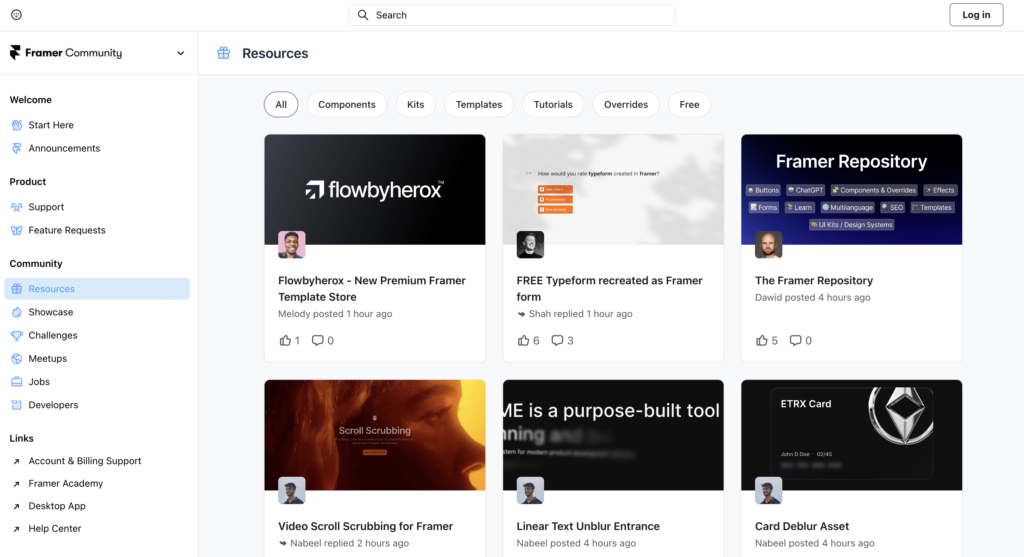
A template is useful both as a starting point and as something to study. Open one up and look at how its sections, text styles, and layouts are organized. Then try replacing a section with your own content.
Choose a template around what you need to show. A striking homepage may be less useful if its project pages leave too little room to explain your work.
You can browse Framer templates and use the official tutorials when you need help with a particular feature.
Framer Pros and Cons
Where It Helps
- A visual workflow: You can adjust the page and see the result as you work.
- Templates to start from: An existing structure gives you something to edit while you learn.
- Design and publishing together: You can take a page from layout to a published site within the same tool.
- A free starting point: You can try a small project before paying for a site plan.
What to Consider
- There's still a learning curve: Responsive layouts, components, and content structure take time to understand.
- Complex requirements need checking: Map out any special functionality, content relationships, and editing needs before building the whole site.
- Costs depend on the project: Your domain, content volume, collaborators, and add-ons can influence which plan you need.
How to Choose a Framer Plan
Start with the free plan if you're learning the editor or testing a page idea. When you're ready to publish a portfolio or business site, check what you need for your domain, pages, CMS content, and bandwidth. Include any collaborators or language versions in that decision.
Plans and allowances change, so compare the details on the official Framer pricing page before paying. Check whether the displayed price requires annual billing and whether any features you need cost extra.
Is Framer Right for You?
For a designer, independent creator, or solo business owner, Framer is worth trying for a portfolio or a site introducing your services. A small first project will tell you more about the workflow than a long feature list.
If your site needs complex functionality or a large publishing operation, write down those requirements first and check how you would handle each one. Think about who will update it six months from now, too.
To get a feel for it, start a free Framer project and build one page with your own content. You'll have a clearer sense of whether it's a tool you want to keep using.
Related Posts
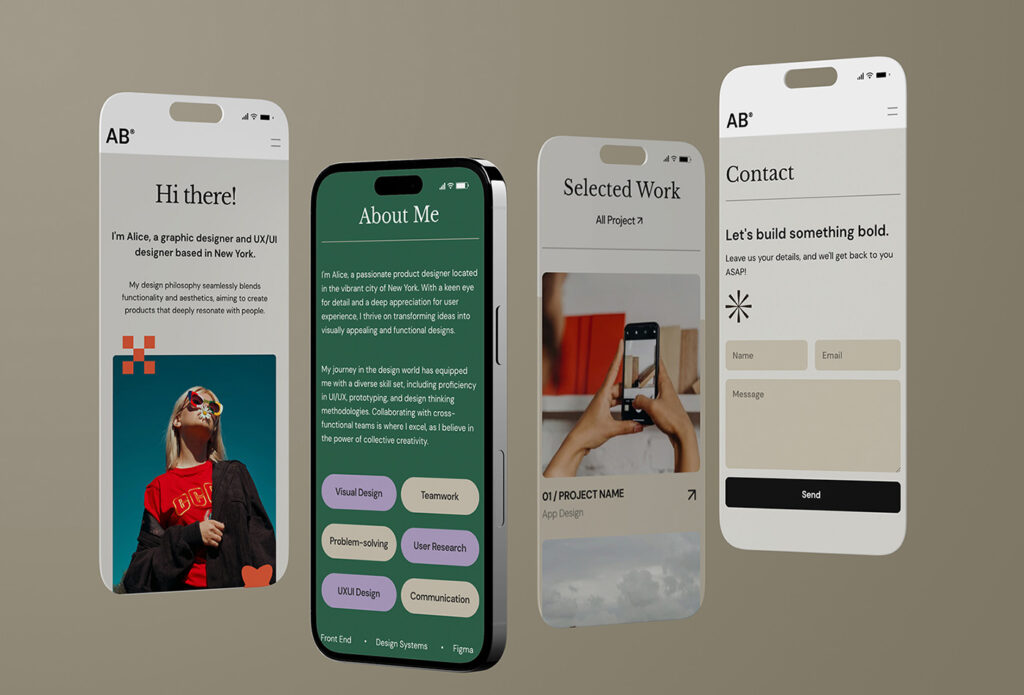
Framer Portfolio Tutorial: From Figma Design to Published Site
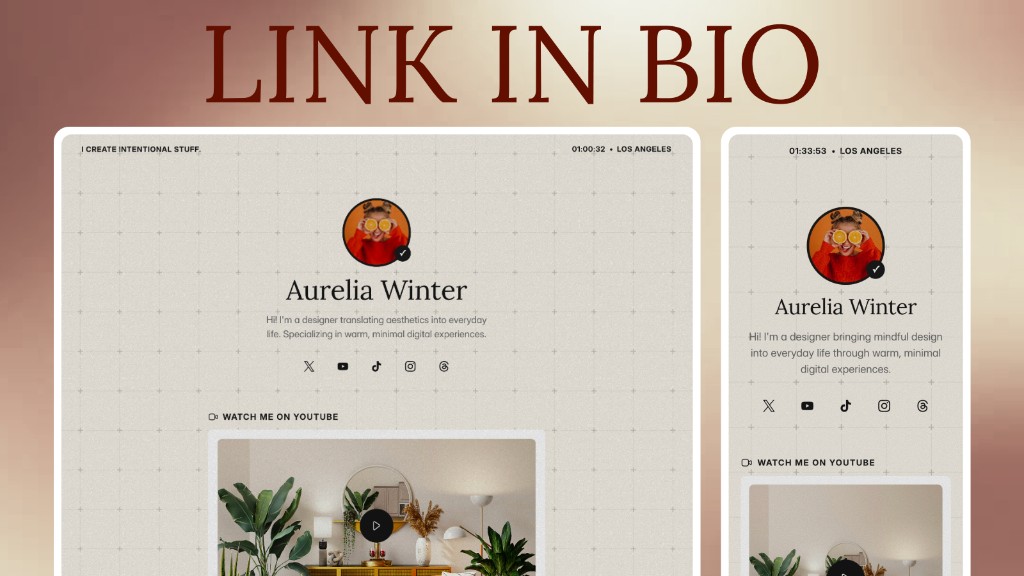
Build a Link in Bio with Framer Agent: Process and Free Template
Framer 3.0: The AI Agent Understands Design Better Than I Expected
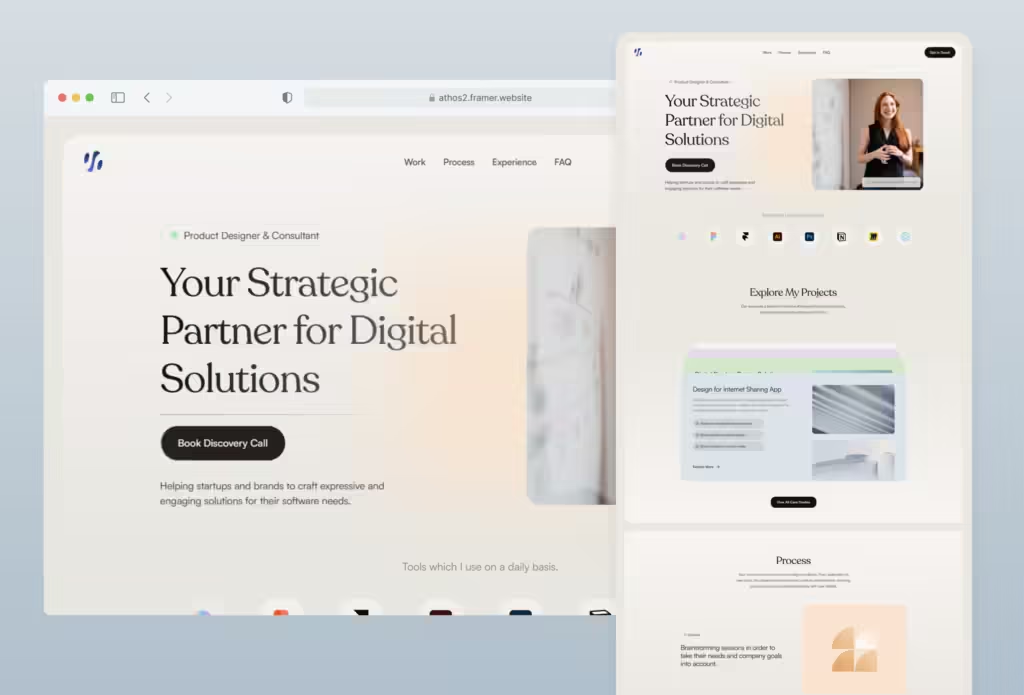
5 Free Framer Portfolio Templates to Boost Your Interview Odds
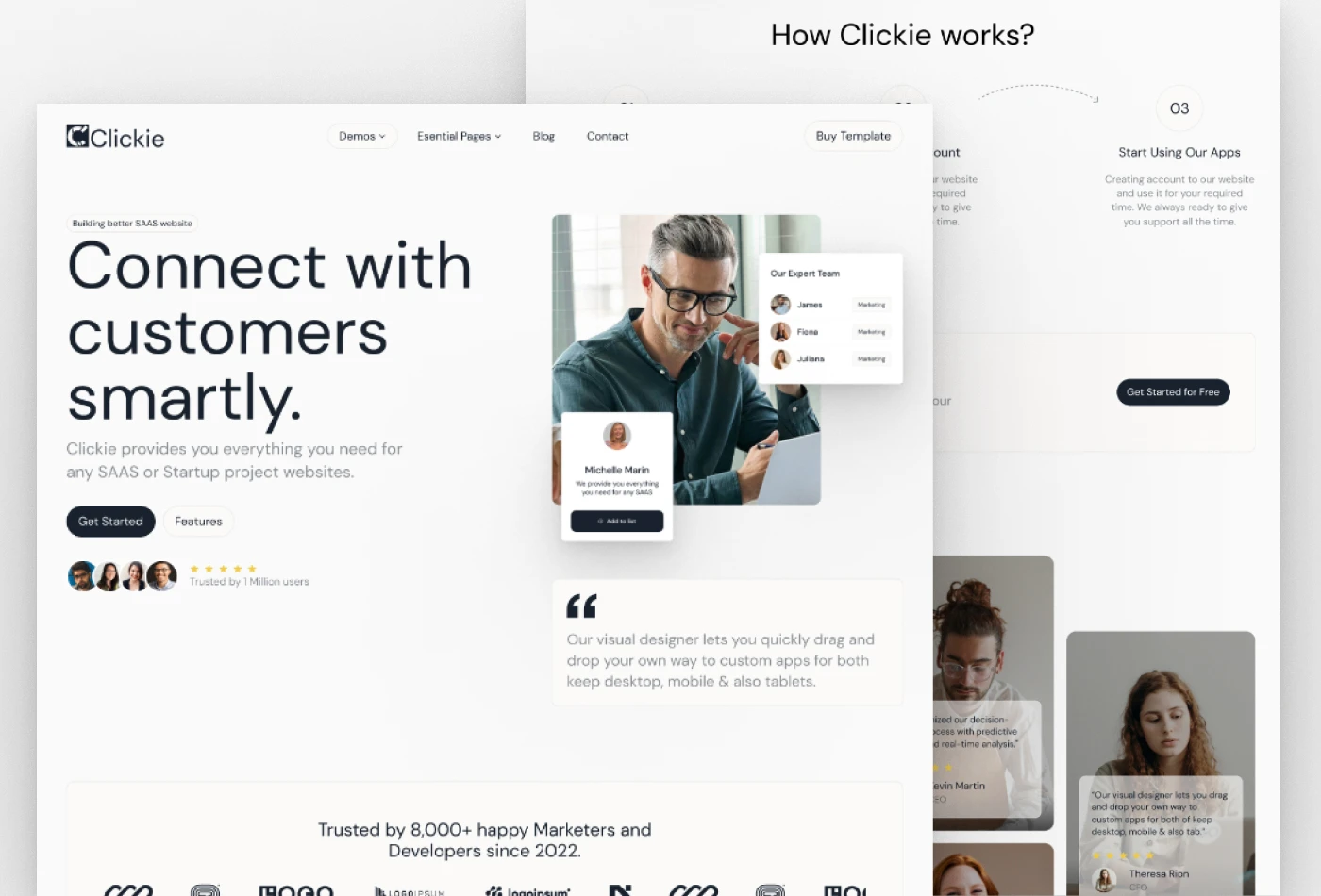
Framer Template Guide: The Simplest No-Code Way to Launch a Site